AI Tools
Auto Layout
How to adjust backgrounds, padding, and dimensions for consistent shoe presentations.
What is Auto Layout?
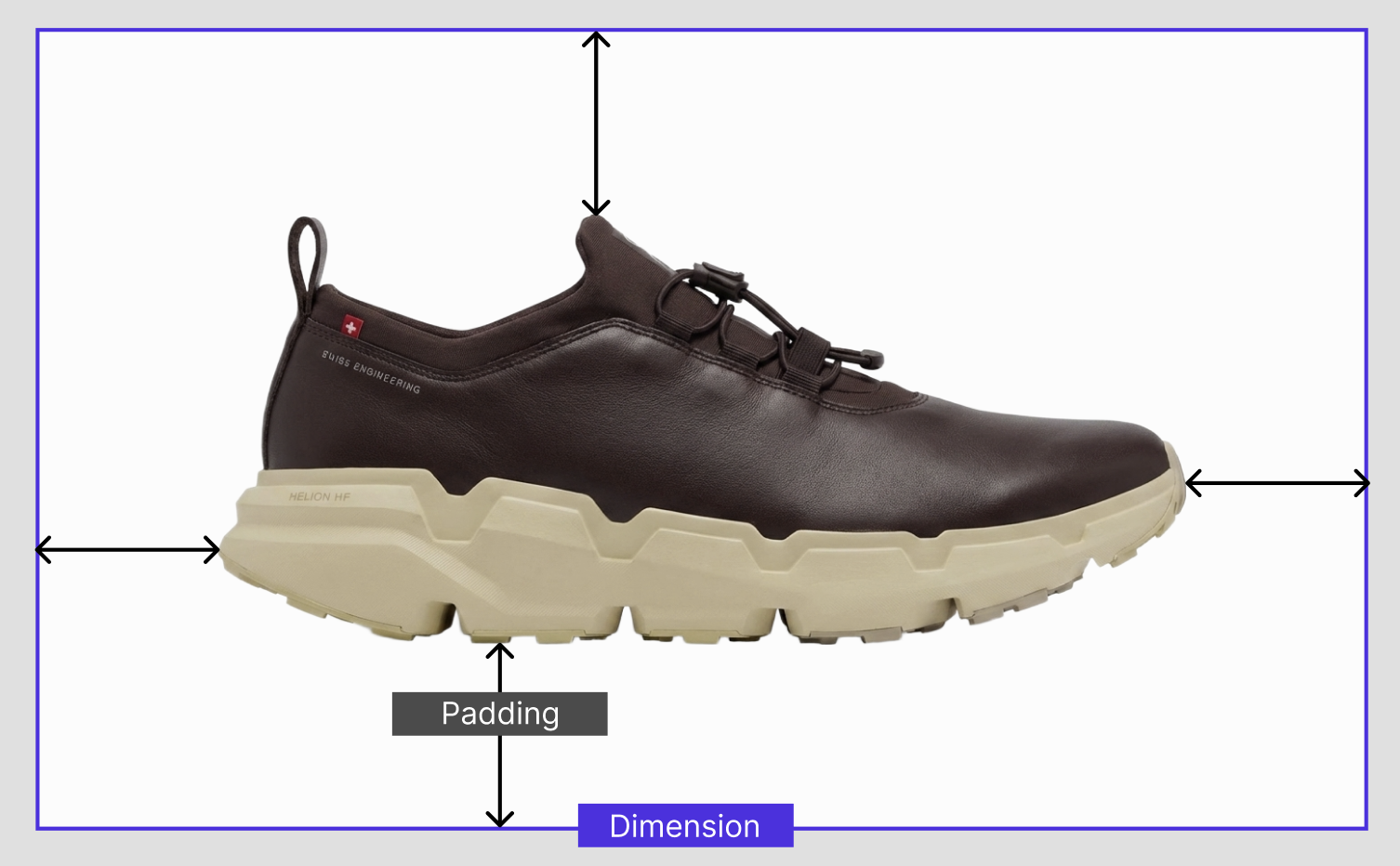
Auto Layout gives you control over how your shoes are presented. Set a consistent background, adjust padding, and resize your images so every shoe in your lineup looks like it belongs together.
When you choose a solid colour or transparent background, Shadow keeps the photographed shadow as a separate variable-transparency layer. It starts at 72%; drag the slider to adjust it, or set it to 0% whenever you need a completely clean cutout.
Perfect for building pitch decks, lookbooks, ecommerce listings, or lining up colorways side by side.
How to use it
- Select one or more shoes from your board.
- In the sidebar, press the + in the Auto Layout section.
- Adjust your settings:
Background modes
- Transparent: strips the background entirely. Great for slides and layering into other tools.
- Overlay: keeps features of the original background. Use this when your shots already have a consistent backdrop and you want to preserve natural gradients or shadows.
- Solid: replaces the background with a single color. The fastest way to get a clean, uniform look across every shoe.
Tips
💡Use Transparent mode to get clean cutouts for slides or external design tools. No background, no fuss.
💡If your shoes were shot on the same backdrop, try Overlay. It keeps natural shadows and gradients intact so the result still looks like a photo, not a paste job.
💡Select multiple shoes at once and apply the same layout settings to get a consistent look across an entire colorway lineup.