Updated November 2026
AI shoe generator for real footwear design
Sole Studio is an AI shoe generator built only for footwear. It works on your shoe rather than starting a new picture each time: it detects the parts so you can change them one at a time, fuses two shoes part by part, and takes prompts in a mode tuned for footwear. Each result appears beside the original.
What an AI shoe generator does
An AI shoe generator, sometimes called an AI shoe design generator, uses an image model to produce shoe designs from a photo, a sketch or a written prompt. General image generators suit broad, fresh ideas. Product work usually needs something narrower: the same shoe in a new color, material or detail, with everything else left as it was. Sole Studio is built for that job, and only for footwear.
Built only for footwear, part by part
Sole Studio’s prompting and editing tools are built around shoes, so a result stays a specific shoe that you can keep changing in controlled steps.
- Prompting tuned for footwear. Footwear prompt mode keeps lasts, toe shape and stitch density plausible. Describe materials, colors and construction, and type # followed by a swatch name to use your own swatch. See AI Prompting & Generation.
- Parts it detects for you. Recolor detects the upper, outsole, midsole, eyelets and laces. Click a part to change it, with no selection to draw, or use the brush for detail work. Recoloring keeps the silhouette and proportions, so a colorway range stays comparable.
- Built-in materials. Choose leather, suede, patent or metallic for a part, or apply saved colors and materials from your Library, then Develop for a photorealistic finish. See Recoloring & Materials.
- Fuse, built for two shoes. Choose the parts to keep from each shoe, such as the upper of one and the outsole of another. Fuse, currently in beta, returns three results. See Fusion.
- Versions and views. Each prompt makes a new version beside the source, and you can branch from any version. Rotate, currently in beta, generates a three-quarter, front, back or top-down view, and background removal leaves a clean cutout.
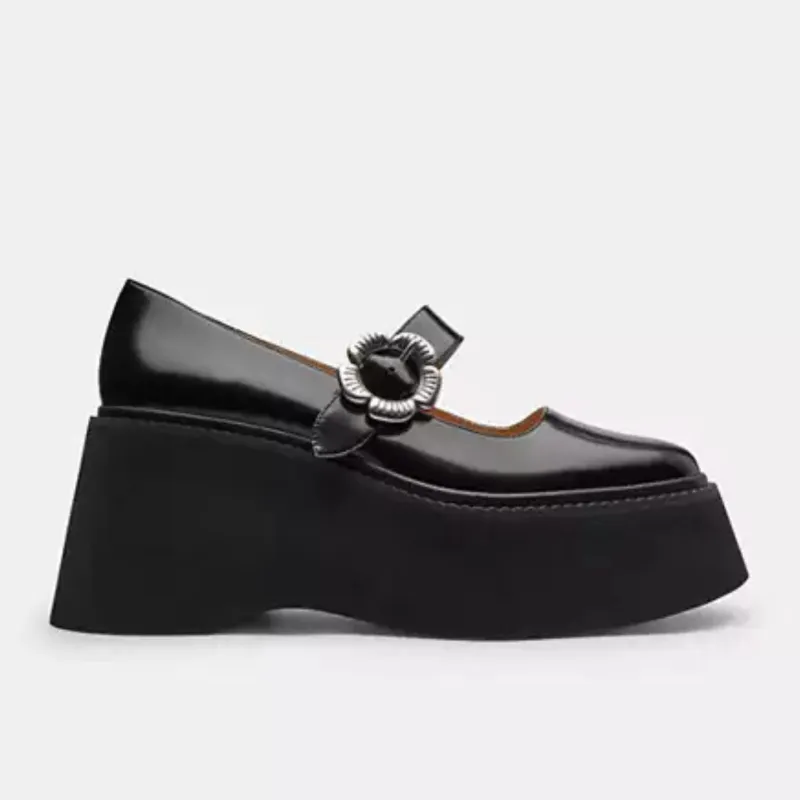
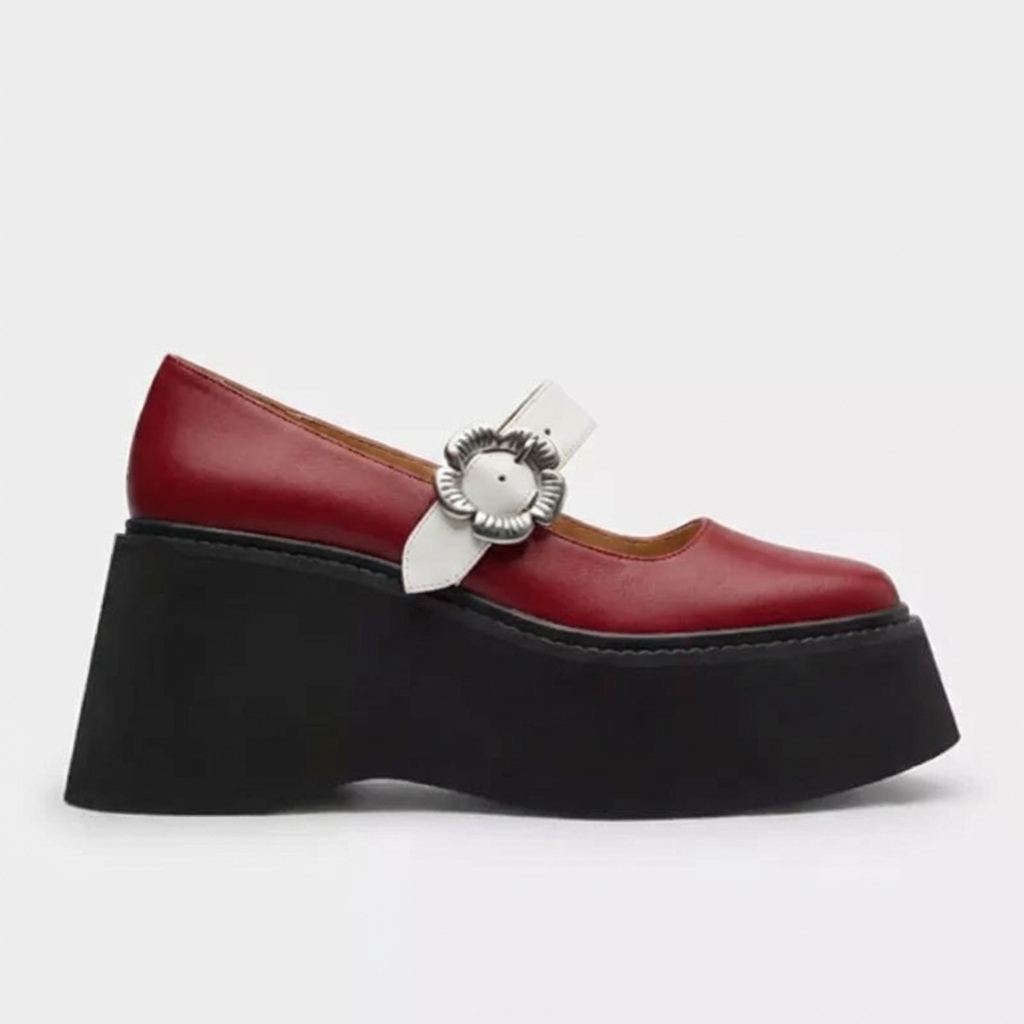
Four ways to generate a shoe design in Sole Studio
Every route starts with a shoe on your board. Click Add Shoe or drag in an image. Any shoe photo works, and clean, well-lit images give the best results.
- From a photo. Select the shoe, click Prompt and describe the design you want. Be specific about materials, colors and construction, for example “White pebbled leather upper, gum rubber outsole, gold metal eyelets.”
- From a sketch. Upload a drawing and prompt “Convert this sketch into a photorealistic image, maintaining exact colors.” Prompt also works the other way: it can turn a shoe photo into a clean black and white outline, as shown below.
- With a prompt and references. Prompt settings let you choose Footwear or General mode, an aspect ratio, a resolution of 1K or 2K, a background, and one result or several directions at once. Drag a swatch, texture or inspiration image into the prompt box as a visual reference. Bulk Prompt applies one prompt to several selected shoes.
- From two shoes fused. Click Fuse, mark one shoe as Shoe 1 and another as Shoe 2, and choose the parts to keep from each. Three results appear as new frames.
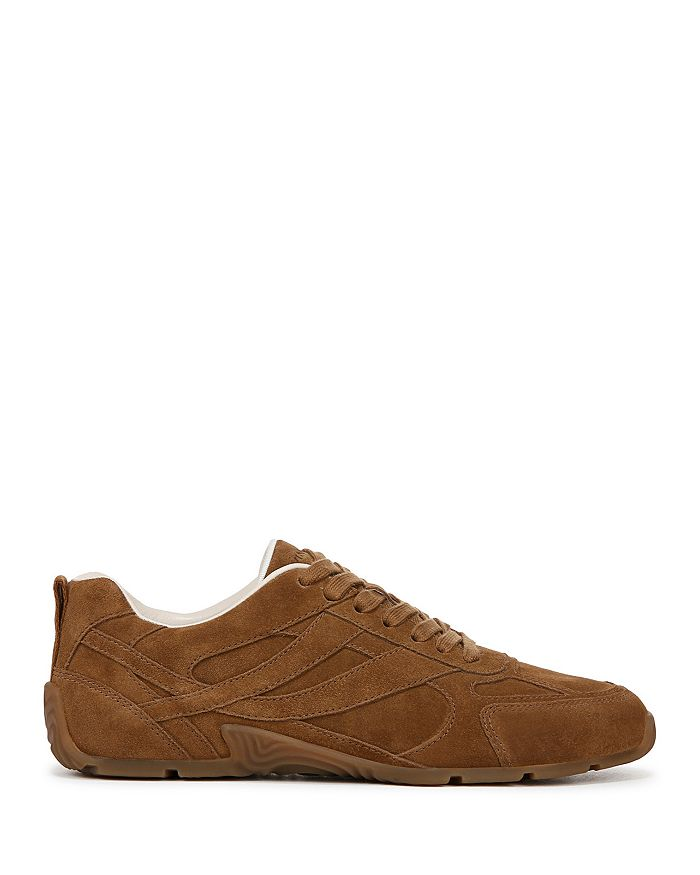
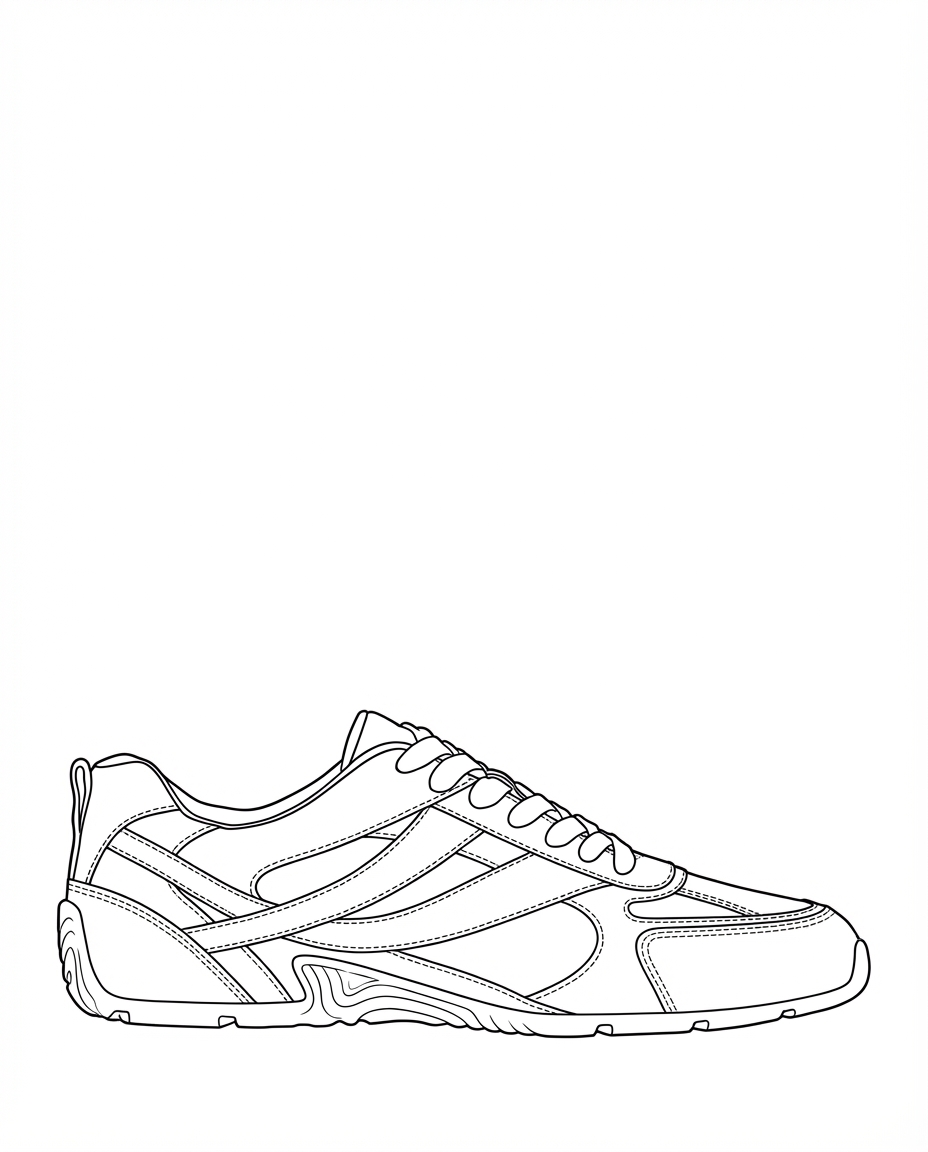
How to generate a shoe design, step by step
- 1.Start a free trial and create a board.
- 2.Add a shoe: click Add Shoe, or drag a photo, sketch or render onto the canvas.
- 3.Select the shoe, click Prompt and describe the materials, colors and construction you want.
- 4.Refine the result: recolor parts, prompt again, or fuse it with a second shoe. Each result is a new version you can branch from.
- 5.Generate other angles with Rotate, remove the background if you need to, and export the design as a PNG or JPEG.
Pricing and the free trial
Every AI action costs one credit, whether it is a prompt, a recolor, a fusion, a rotation or a background removal. New accounts start with 20 free credits and no credit card. The trial credits are a one-off total, not a monthly allowance.
After the trial, plans are monthly: Individual from $65 a month, Team from $160 a month for up to 5 people, and custom Enterprise plans. Paid plans include a commercial license. See pricing for the credits in each plan.
Common questions
Is there a free AI shoe generator?
Sole Studio is free to try. New accounts get 20 credits, a one-off total, with no credit card. After that, generating designs needs a paid plan, from $65 a month.
Can I turn a shoe sketch into a realistic image?
Yes. Upload the sketch, select it, click Prompt and ask for a photorealistic image that keeps the sketch’s colors. The result appears as a new frame beside your sketch.
Will my design stay the same between edits?
Recoloring changes only the part you select and keeps the silhouette and proportions. Each prompt creates a new version beside the original, so you can compare versions and continue from any of them.
Does it work for sneakers?
Yes. Any shoe photo works as a starting point, so Sole Studio can serve as an AI sneaker generator as well as a tool for other footwear. Footwear prompt mode is set up for shoe design work.
Can I use generated designs commercially?
Yes. Paid plans include a commercial license, and the designs you create are yours to use for product development, presentations and marketing. To see where Sole Studio sits among other tools, read the shoe design software guide.
Generate your first design
Upload a shoe photo or sketch and try Prompt, Recolor and Fuse. 20 free credits, no credit card required.